Whether or not you're still a Snapchat devotee, you know one of the best parts of the app are the geofilters you unlock in different parts of a city. The company upped its game when it released on-demand geofilters [1], which gave people the option to create customized filters them for weddings, birthdays, and other events. Well, get used to seeing more of those, because now, Snapchat is bringing on-demand geofilters to the app [2].
The feature, which is live for all iOS and Android Snapchat users, can be found on the settings page. Pick what type of event you want to celebrate — like a birthday or graduation — choose how long you want it to live and around which location, hit submit, and wait for the filter to be approved (which takes up to one business day.) The price of each Snapchat filter starts at $6 and varies depending on how long you want it to be available and the size of the location.

Just like before, the on-demand geofilters will need to adhere Snapchat's geofilter [4] and community guidelines [5]. Accidentally create one or want to change one thing once it's submitted? You can cancel immediately after sending it off for approval — or even while the filter is live. If you need to personalize your geofilter even more, you can still create your own filter on Snapchat's website [6].
Ahead, see how to create your own on-demand filter. It's so easy — trust us.
First, go to your settings on Snapchat.
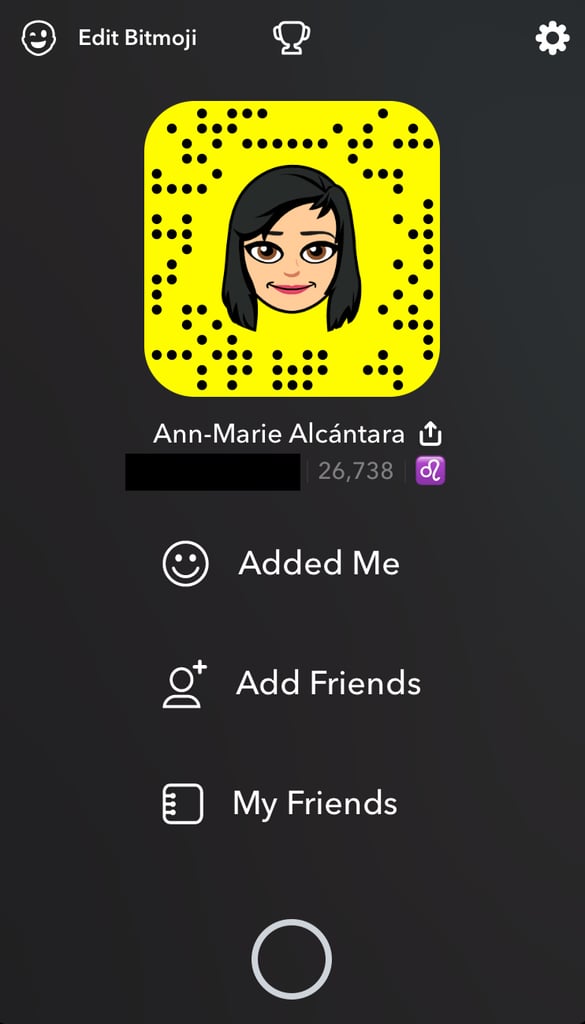
In the app, tap on your bitmoji or profile icon in the top left corner. You'll see this page. Tap on the gear icon in the top right corner.
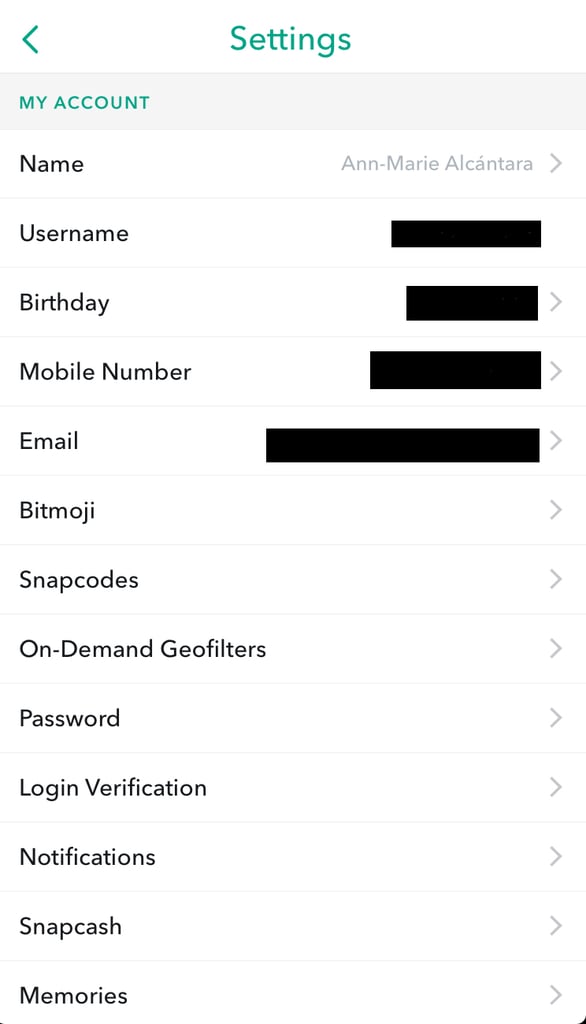
Scroll down to "On-Demand Geofilters" and tap on it.
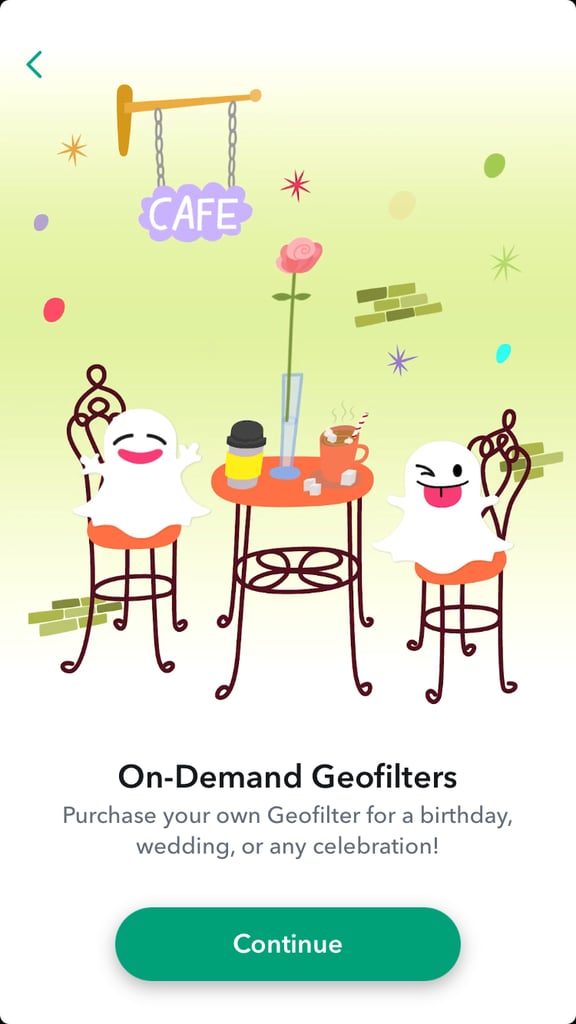
You'll see this screen the first time you try to create a geofilter.
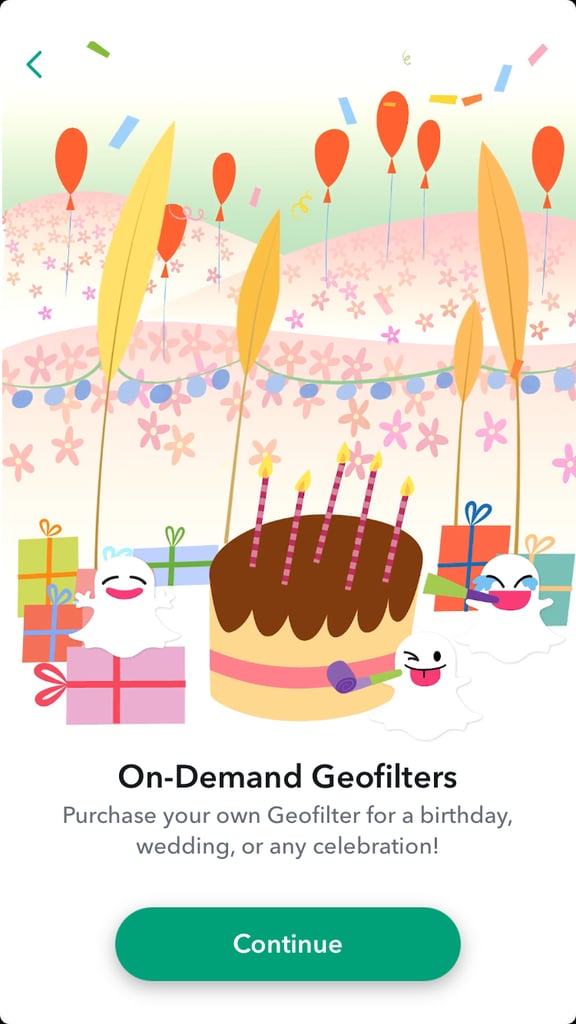
It'll walk you through what an on-demand geofilter is.
Pick a theme for your on-demand geofilter.

You'll get another walkthrough this time of how you can customize your geofilter.
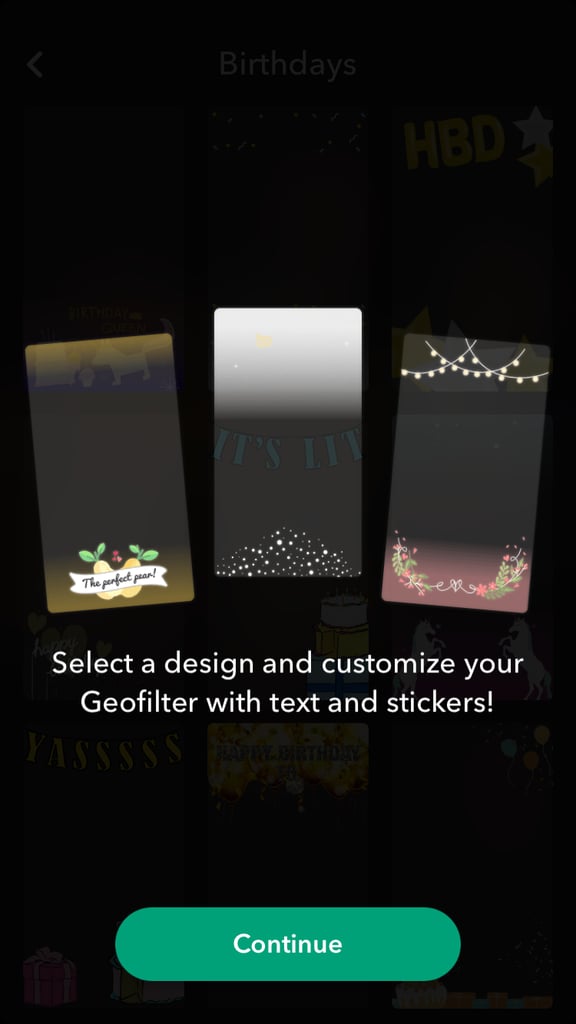
Pick a design.

Add text, stickers, and Bitmoji to your design.
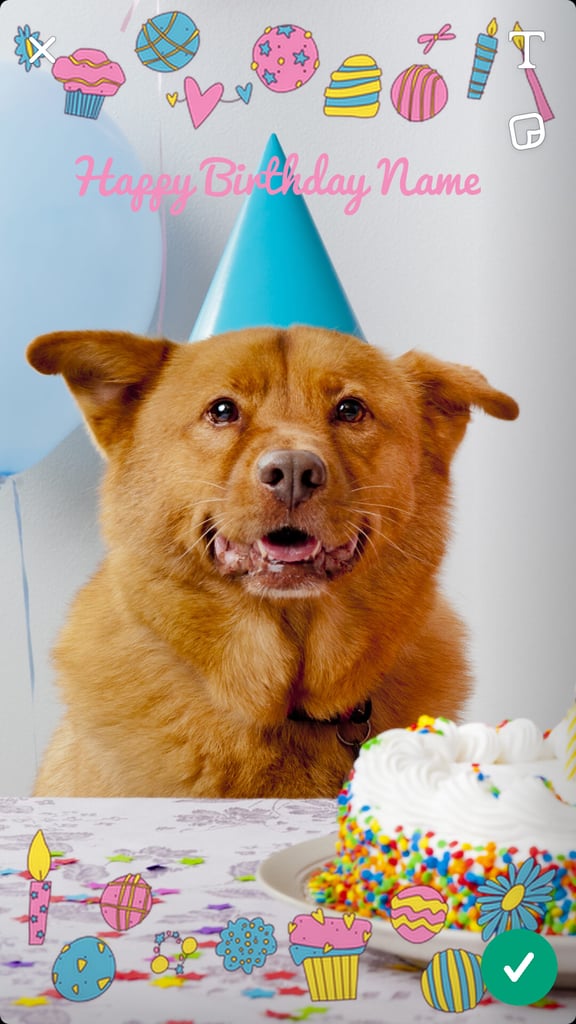
Once you're done, tap the checkmark icon in the bottom right corner.
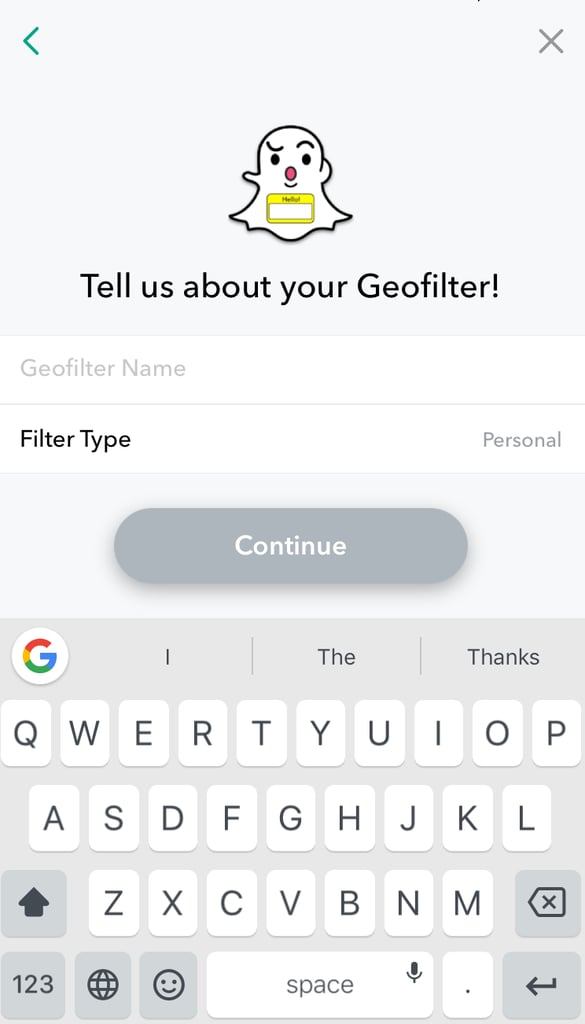
Give your geofilter a name and type.
Set how long you want the geofilter to last for.
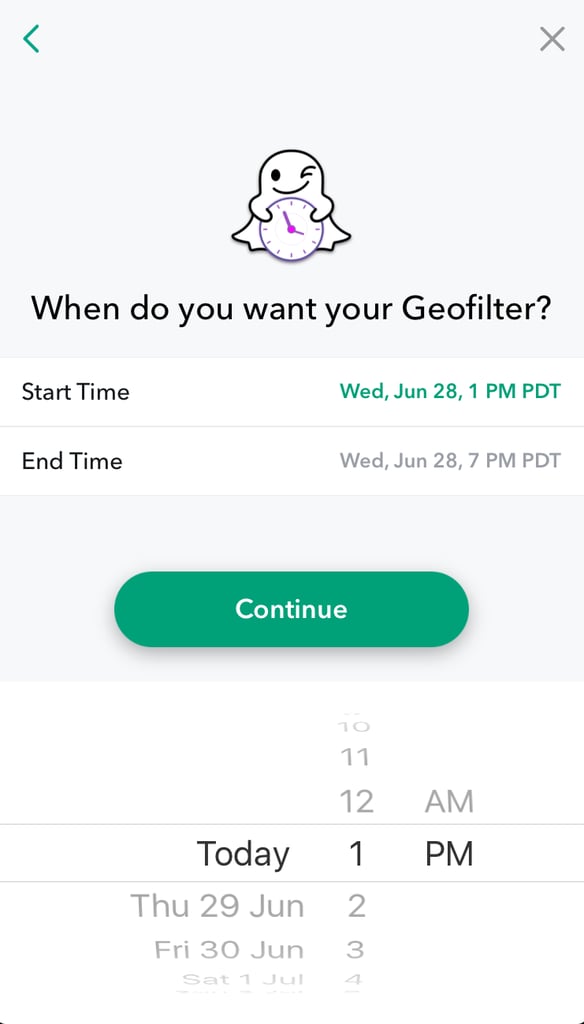
Keep in mind, the longer you have it on for, the more it might cost.
Next, you'll learn a little bit about how a geofence works.
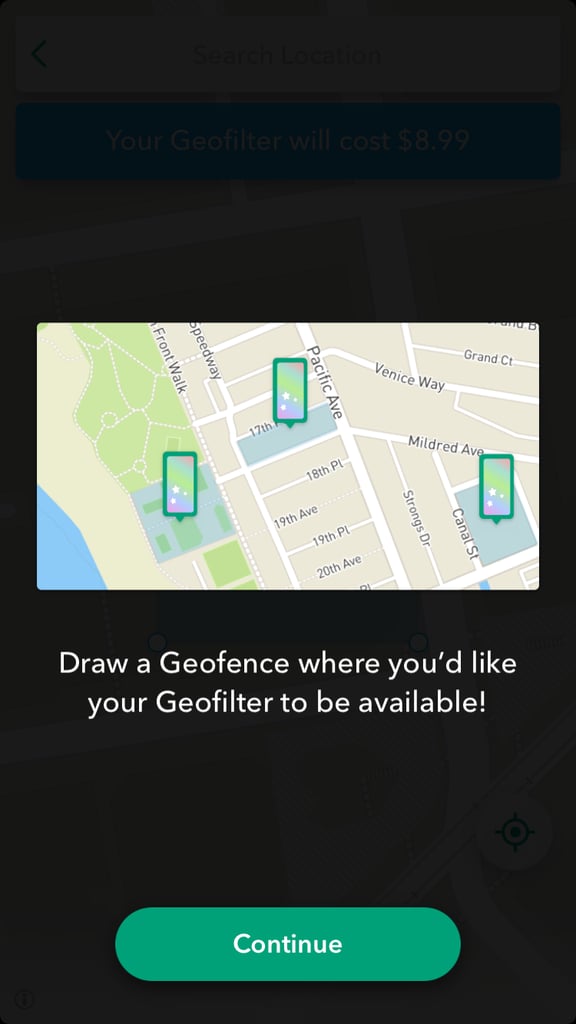
A geofence simply means picking a specific location for the geofilter to exist in and setting a boundary around it.
Pick the location of where you'd like your geofilter to exist.
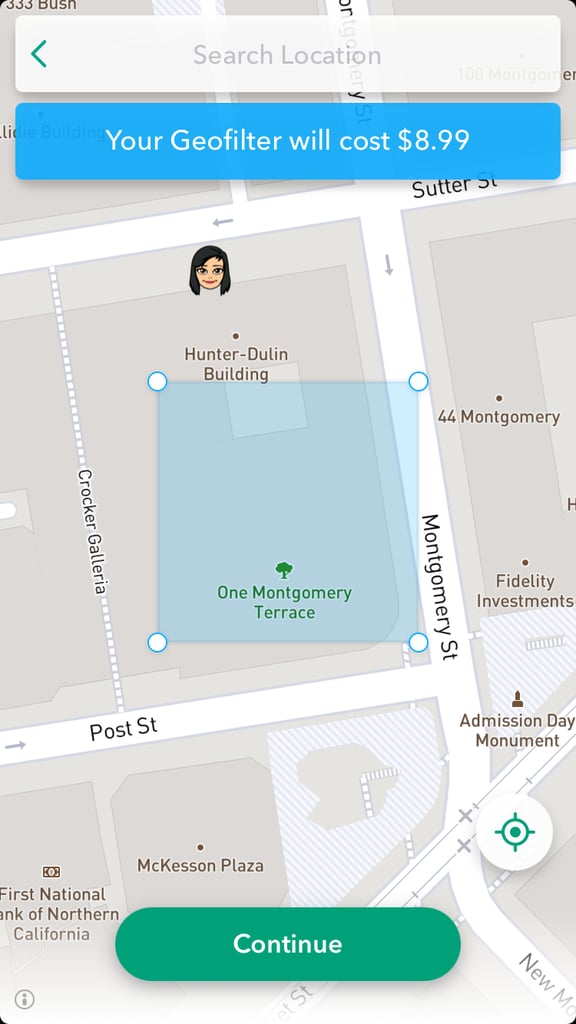
You can drag the circles to expand or lessen the scope of your geofence. You can also search a specific location.
Confirm all the details about your on-demand geofilter.
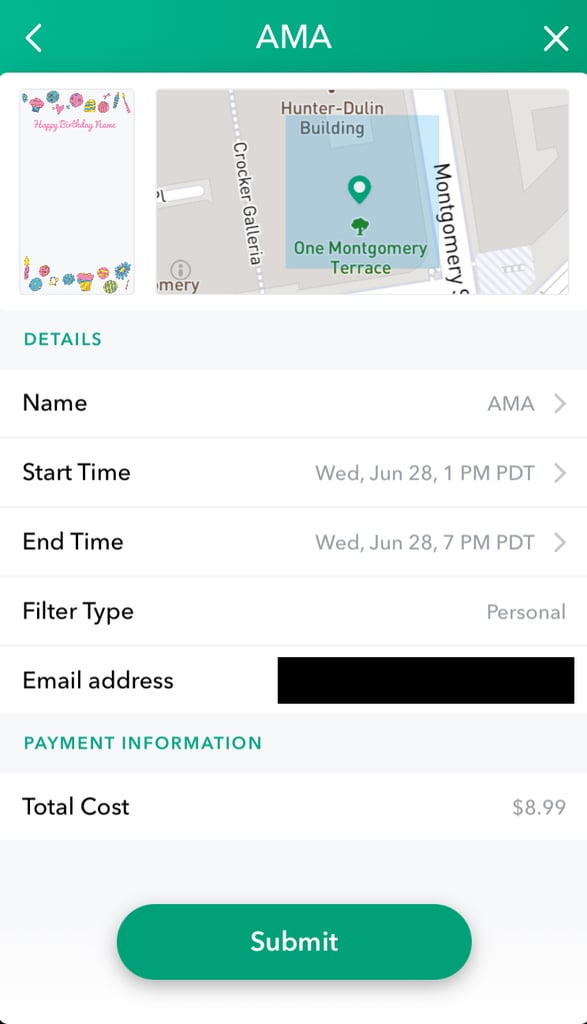
Here, you'll also see how much the geofilter will cost you. Hit submit.
You'll see a final warning about submitting your geofilter.
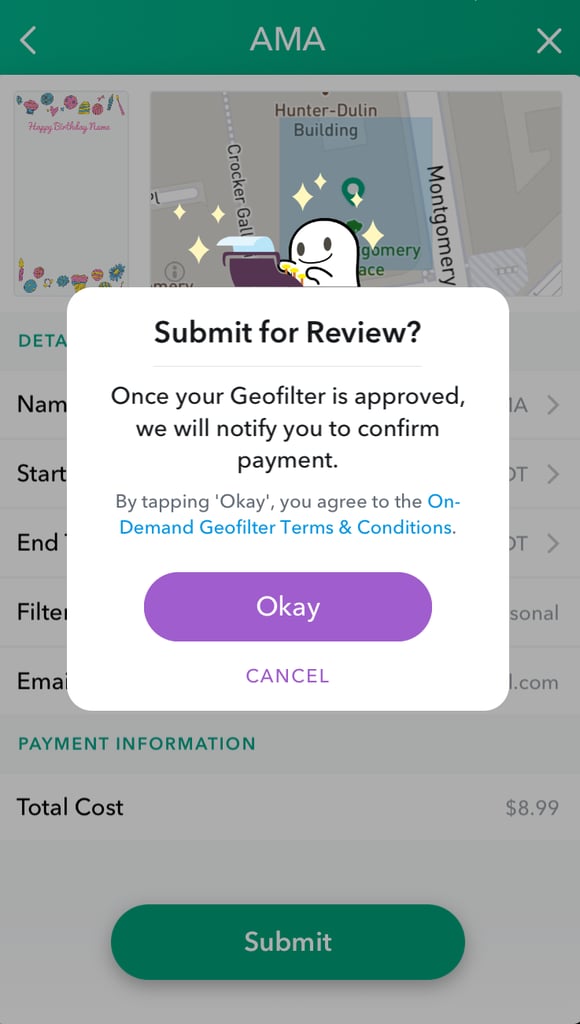
Once you hit "Okay," Snapchat will take around one business day to review your geofilter.
Messed up? Go to "My Geofilters."
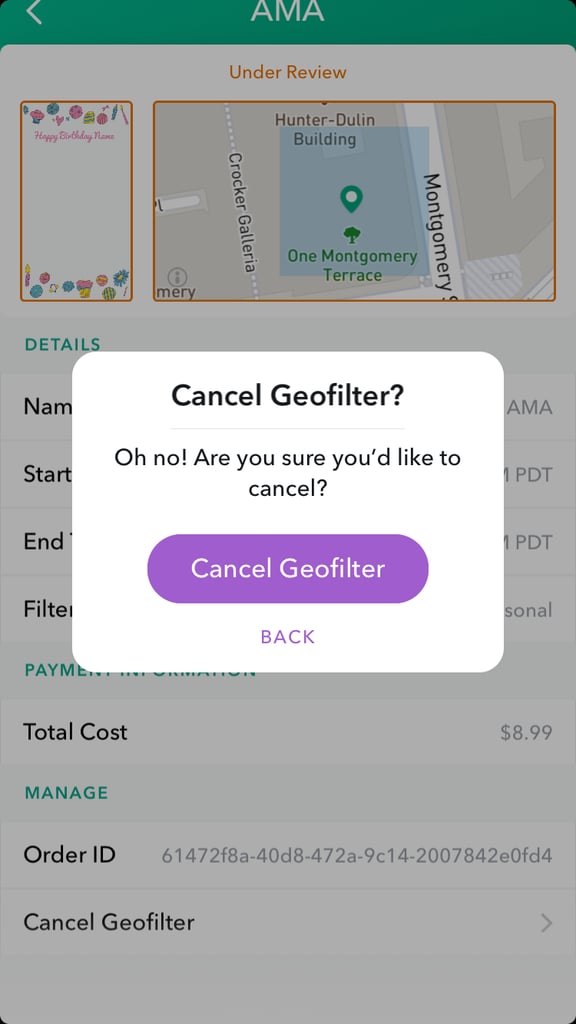
On this page, you'll see the various geofilters you created. Tap on the one you want to cancel. You'll get a pop-up to make sure you want to cancel. You can cancel your geofilter both before it's approved and afterwards.
Watch a video ahead to see creating an on-demand geofilter works.