There are plenty of reasons to update your iPhone to the latest iOS [1], such as for enhanced security and fun, new iMessage features [2]. Of course, that does mean your phone might hit some annoying bugs along the way. Keep reading to see how to fix some of these bugs quickly and easily.
Solve any WiFi woes you might have.
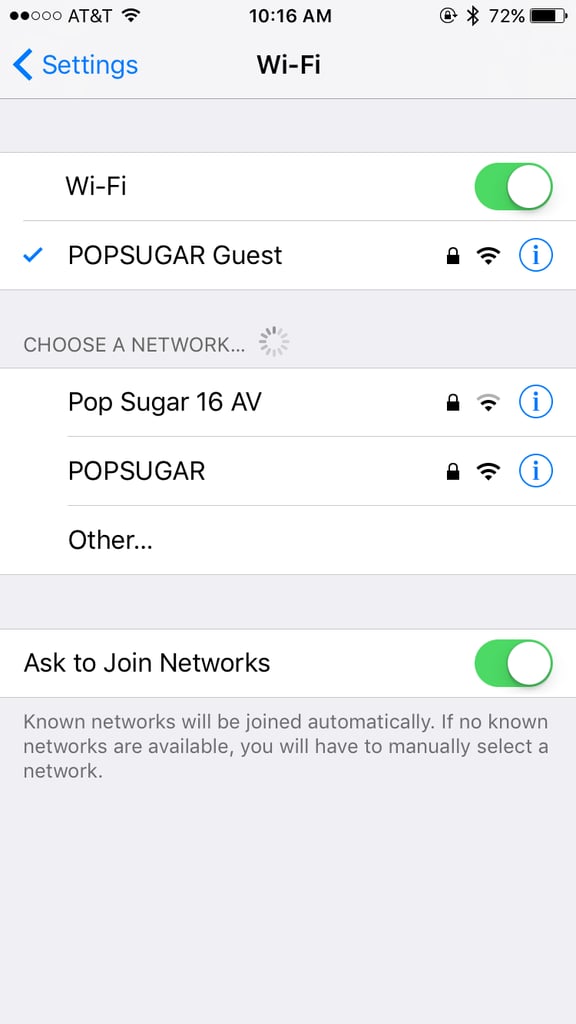
With a new iOS update, you might see some issues connecting to your WiFi or Bluetooth devices. Instead of trying to repair to a device or reconnect, just go to Settings > General > Reset > Reset Network Settings. After this, you should be able to use WiFi and Bluetooth again.
Don't miss out on the fun iMessage effects.
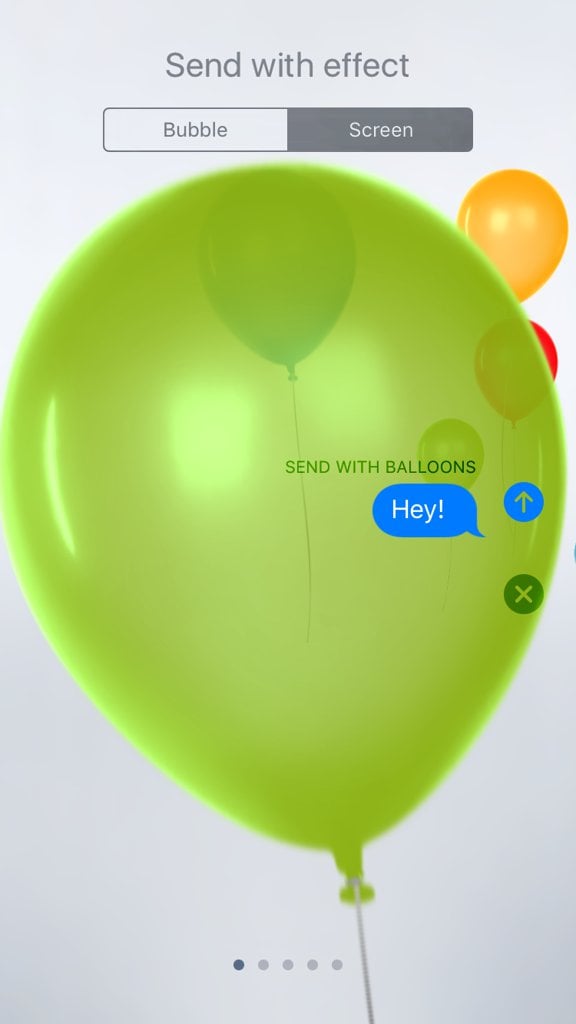
The new iMessage in iOS 10 has fun full-screen effects, but if you're not seeing them, that's a problem. The easiest fix is going to Settings > Accessibility > Turn off Reduce Motion and turning this last option off.
Find out about any public transit issues before you leave the house.
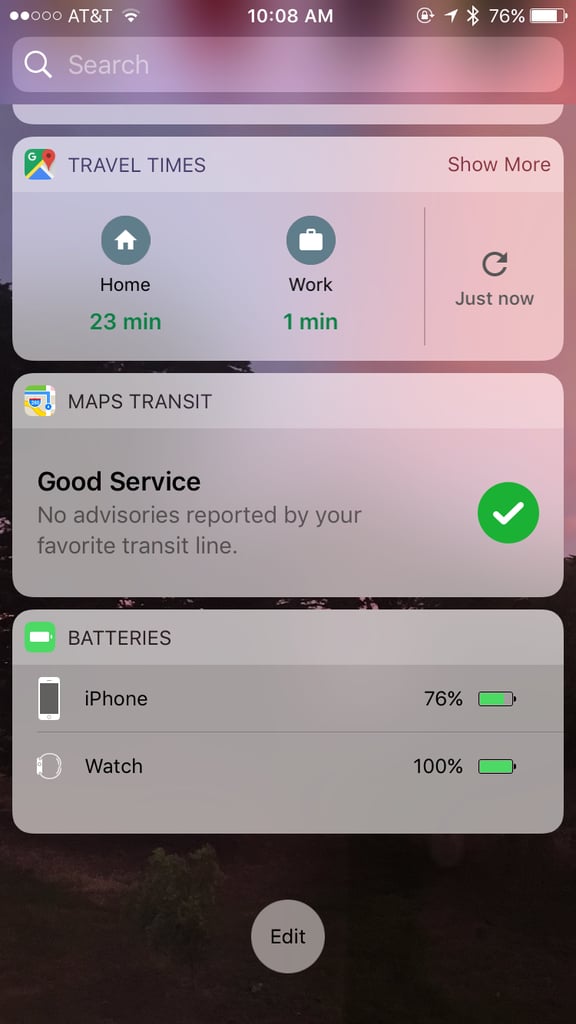
In the new Spotlight section, you can add a widget to see an update on the transit lines you most commonly take. However, if it's not working for you anymore, go to Settings > General > Accessibility > Speech > Speak Screen and turn this on. It should make this feature work in your widgets again.
Bring back "slide to unlock" — kind of.
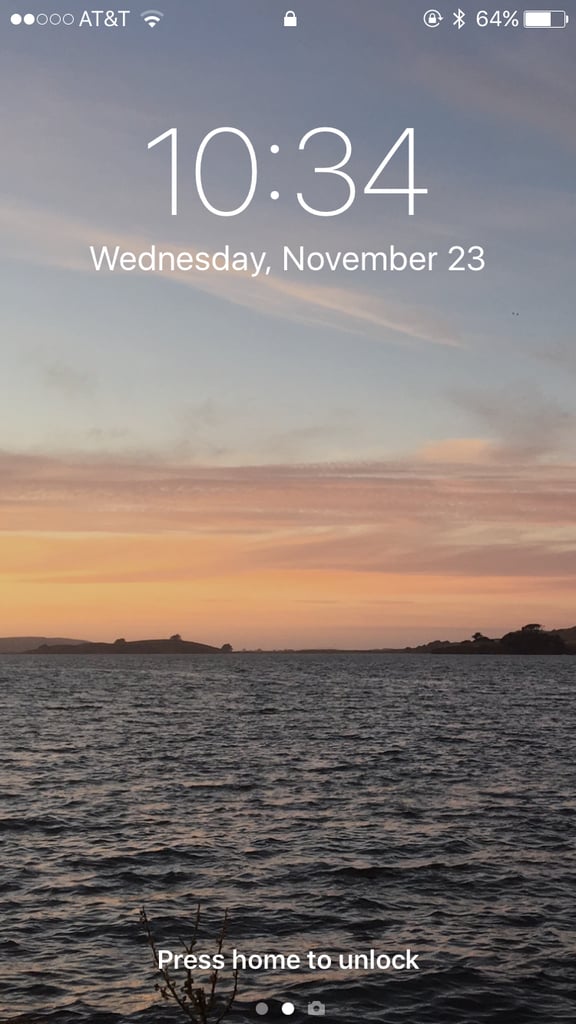
If you miss "slide to unlock," here's one way to kind of get the feature back. Head to Settings > General > Accessibility > Home Button > Rest Finger to Open and turn this on. This doesn't fully bring back the sliding-to-unlock feature but does eliminate the extra step of pressing on the home button to unlock your phone.
Stop turning on Siri when you're trying to unlock your phone.
Unlock your phone without activating Siri by going to Settings > Siri > Access on Lock Screen and turning this off. This should eliminate hearing Siri go off when you're just trying to open your phone.
Save your battery.
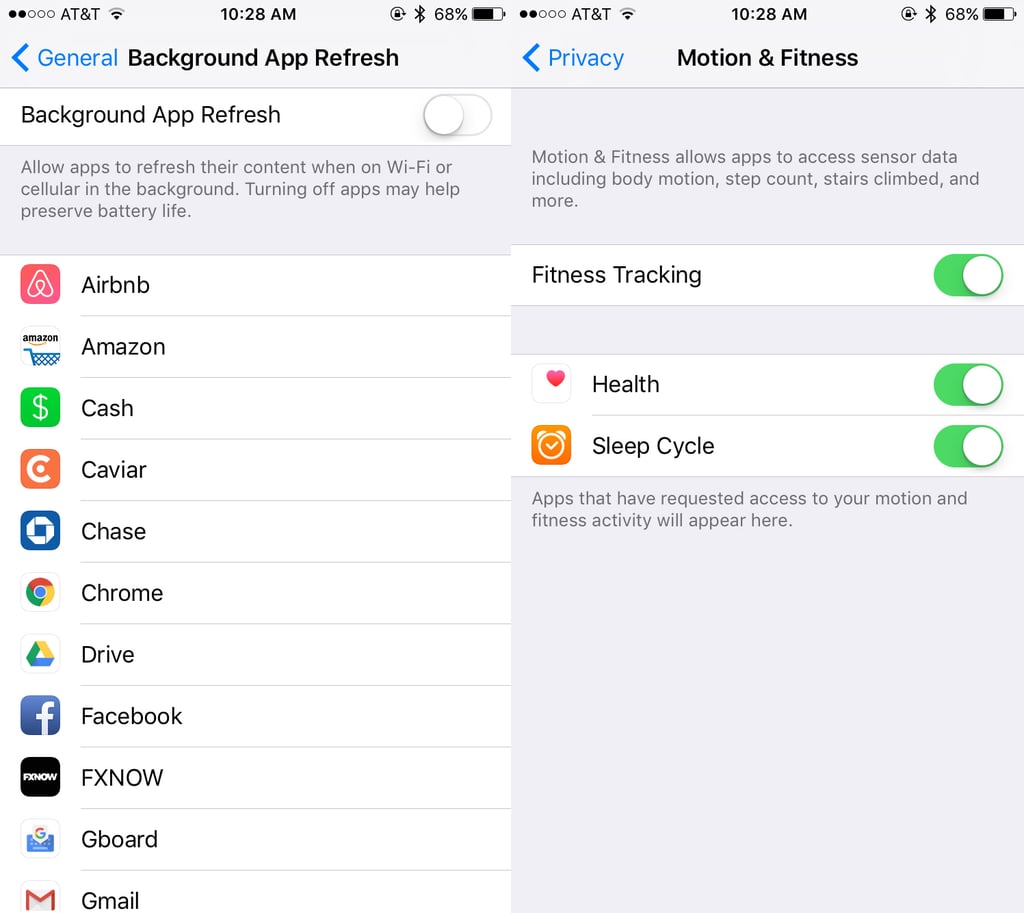
If you're on an older device and seeing your battery drain a lot faster, go to Settings > General > Background App Refresh and switch this off. To save your battery, go to Settings > Privacy > Motion and Fitness > Fitness Tracking and turn this off as well. And as always, you can go to Settings > Battery and see what's using your battery the most.
Turn on "Raise to Wake" and see your notifications.
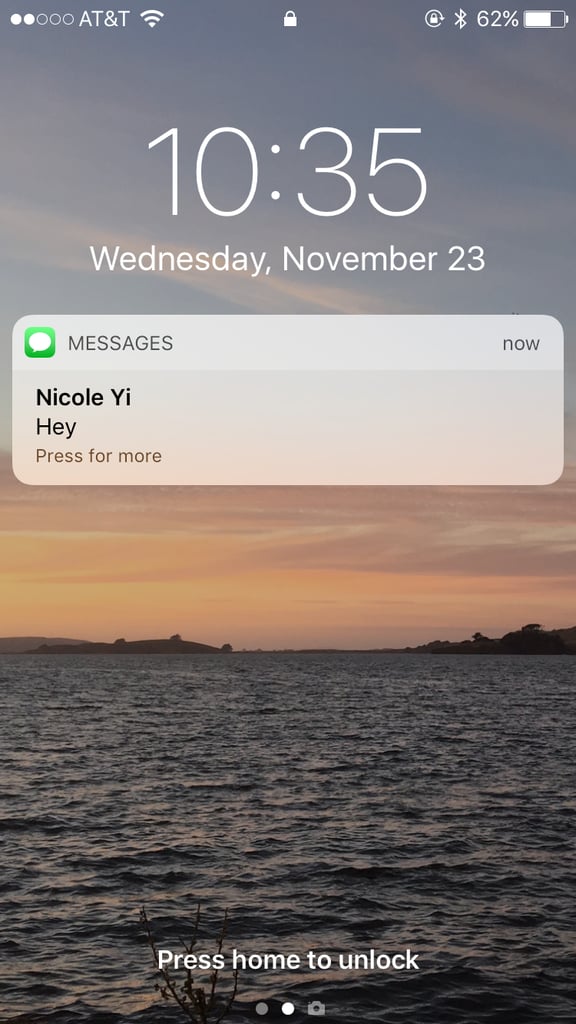
The "raise to wake" feature is great because it allows you to see what notifications you may have missed in a quick glance. However, if it's not working for you, make sure it's actually on by going to Settings > Display and Brightness > Raise to Wake and turning this feature on.
Get rid of the iMessage cluster of apps.
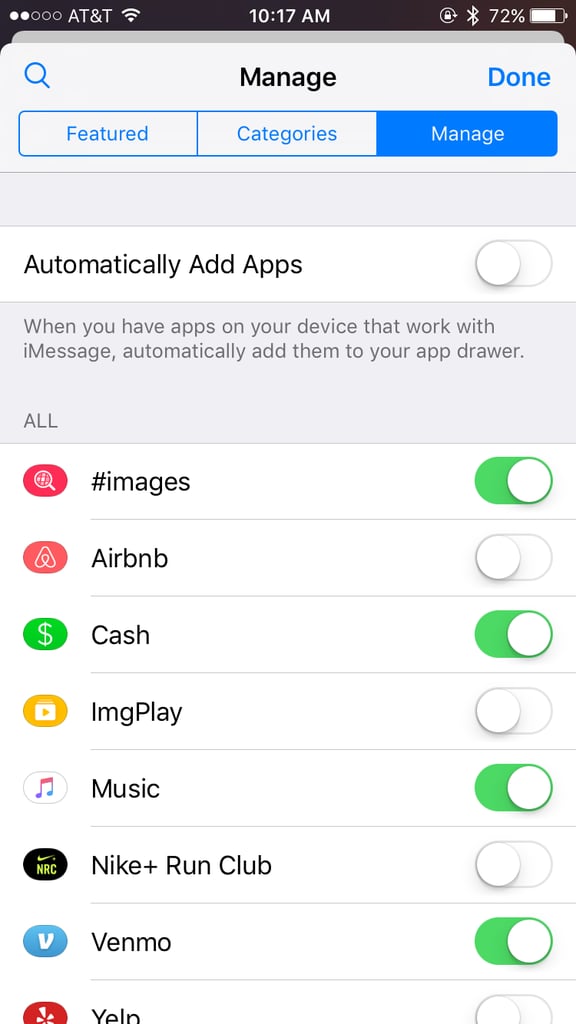
Don't want your iMessage to become a cluster of apps? Turn off the option for apps to be automatically added! Go to iMessage and then tap on the App Store icon. Tap on the four dots in the lower left corner and choose Store. In the manage tab, turn off "Automatically add apps." From now on, you can repeat these steps to add which apps you want to see in your iMessage.
Fix any Touch ID issues.
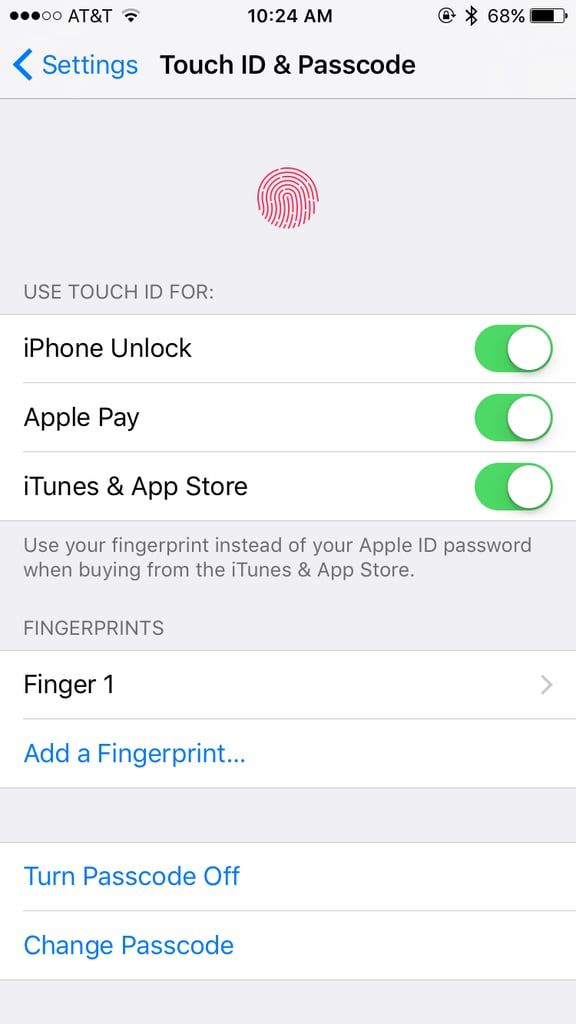
Did Touch ID stop working for you after updating to iOS 10? You can do two things to fix this. First, go to Settings > Touch ID and Passcode and turn off the option for "iTunes and App Store," and then turn off and on your iPhone. If that doesn't work, go to Settings > Touch ID and Passcode and delete your fingerprints. Add them again and Touch ID should work!
Make your mail app work again.

Another issue people are experiencing is the Mail app no longer working. To fix this, go to Settings > Mail > Accounts and tap on your account. Delete the one that's having the issue and then add it again.