How to Find Out How Much Time You Spend on Your Phone
This Cool iPhone Feature Lets You Limit Your Screen Time (No Willpower Required)


Whether you're checking emails, perusing Instagram, or building a team of adorable cube-shaped creatures on Pokémon Quest, everyone could stand to spend a little less time staring at a phone screen. However, even if you don't have commendable willpower (or an excellent phone hiding spot), you can still achieve a new year's resolution of less screen time and more face time — and no, making phone calls via FaceTime doesn't count.
With iPhone's Screen Time feature, you can control everything from app usage to content controls, both for yourself and for your family (Be warned: the amount of time you actually spend on your phone might just freak you out a little bit). Check out this gallery for a step-by-step guide to easily monitoring both your own phone activity and your child's.

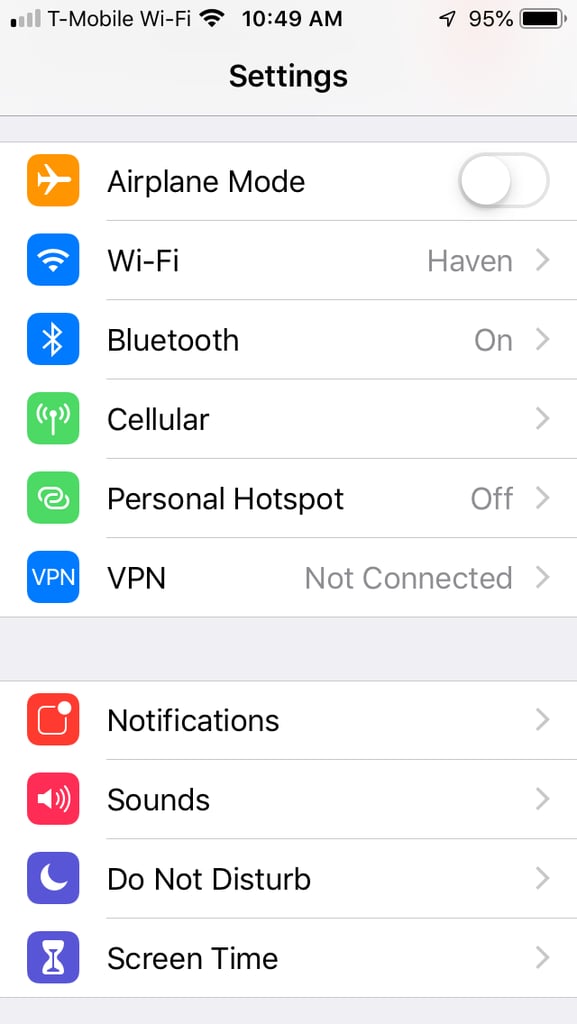
On Your iPhone, Go to Settings and Find Screen Time
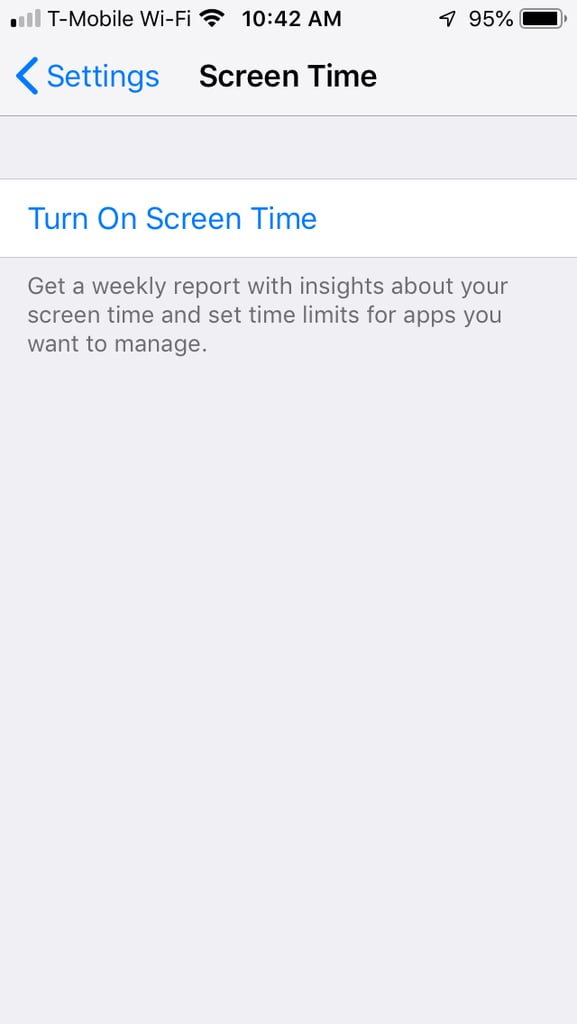
Tap Turn on Screen Time
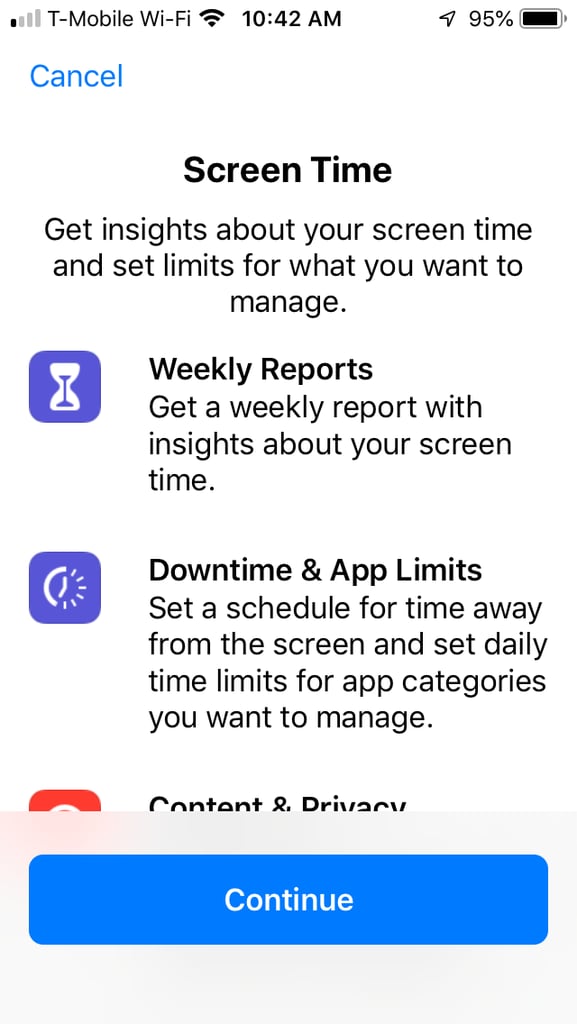
Tap Continue
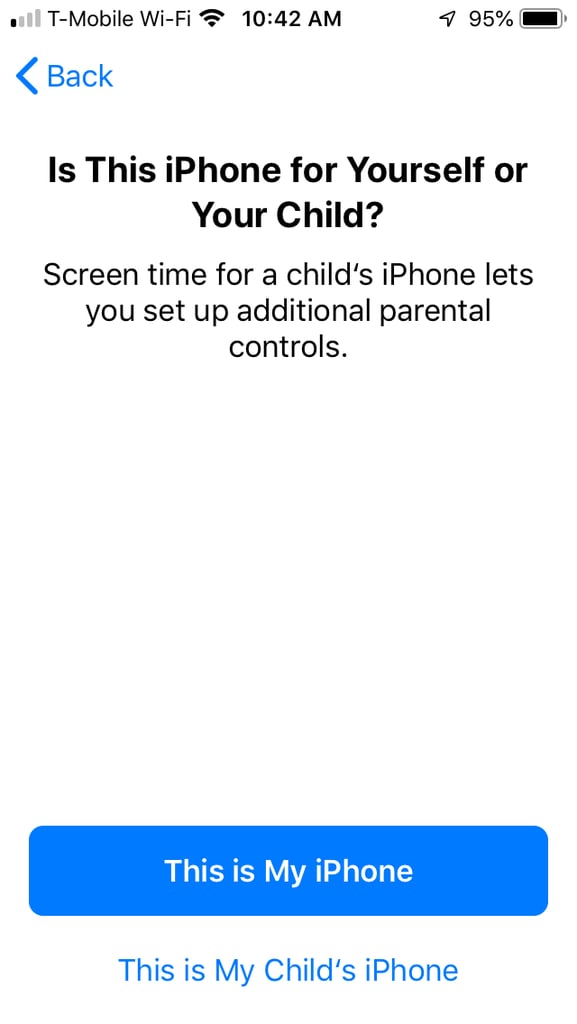
Select This Is My iPhone or This Is My Child's iPhone
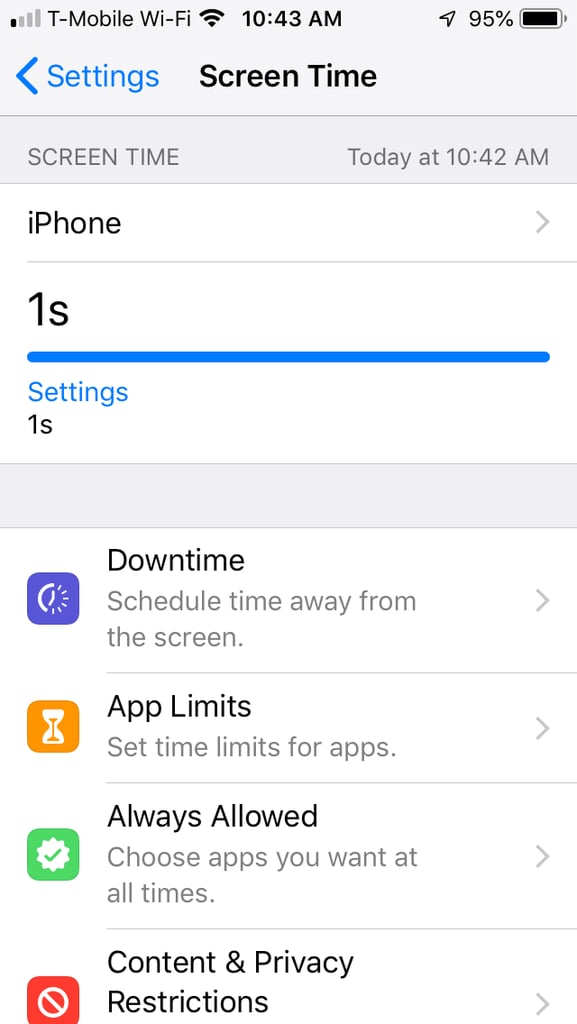
View Your Report and Set Limits
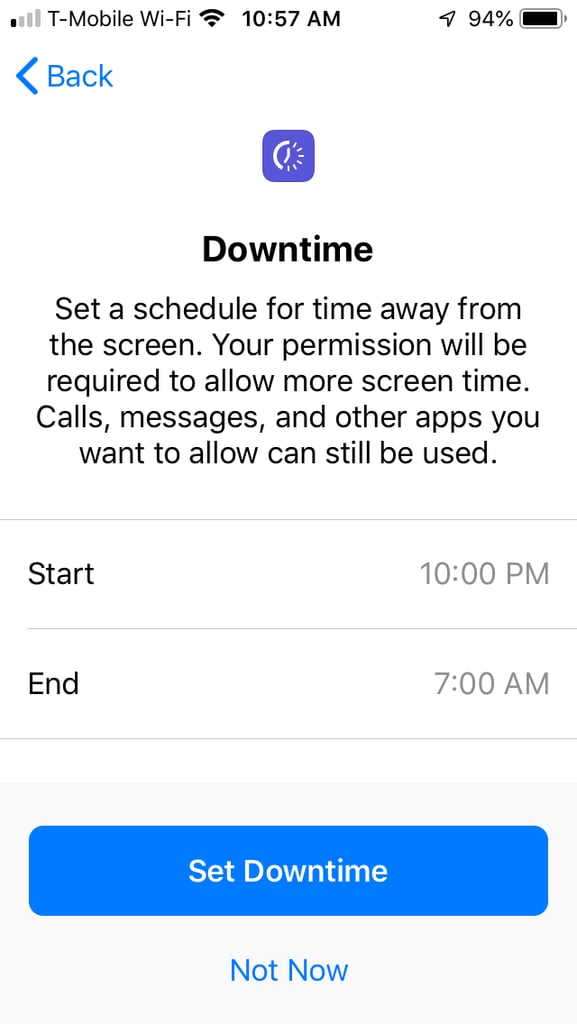
Set Downtime For Your Child
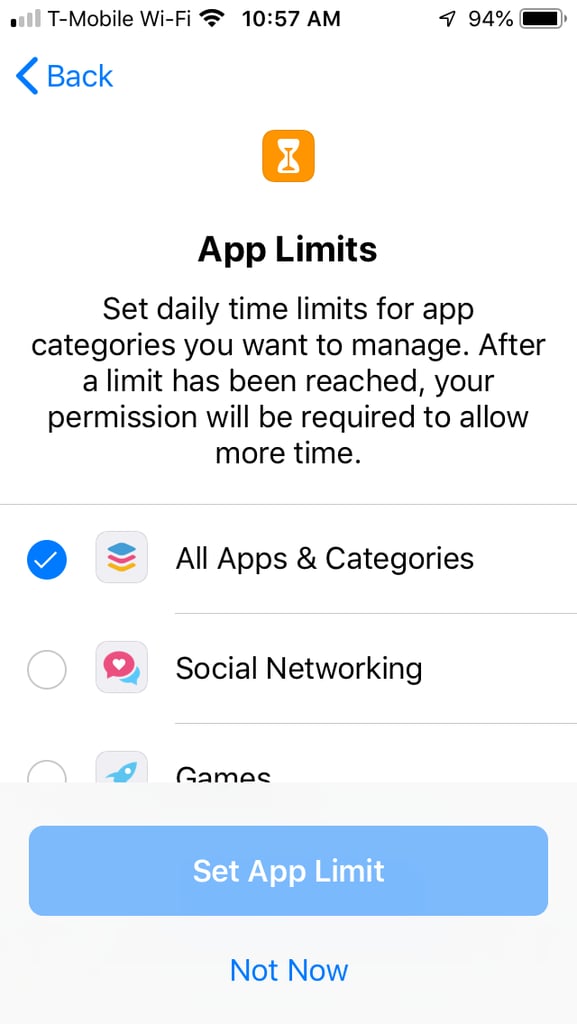
Set App Limits For Your child
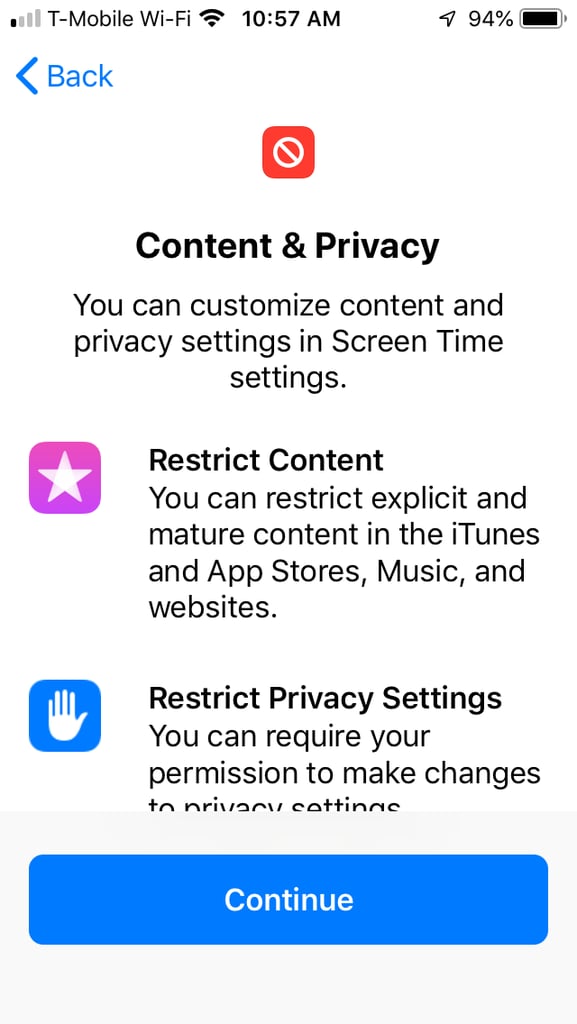
Set Content and Privacy For Your Child
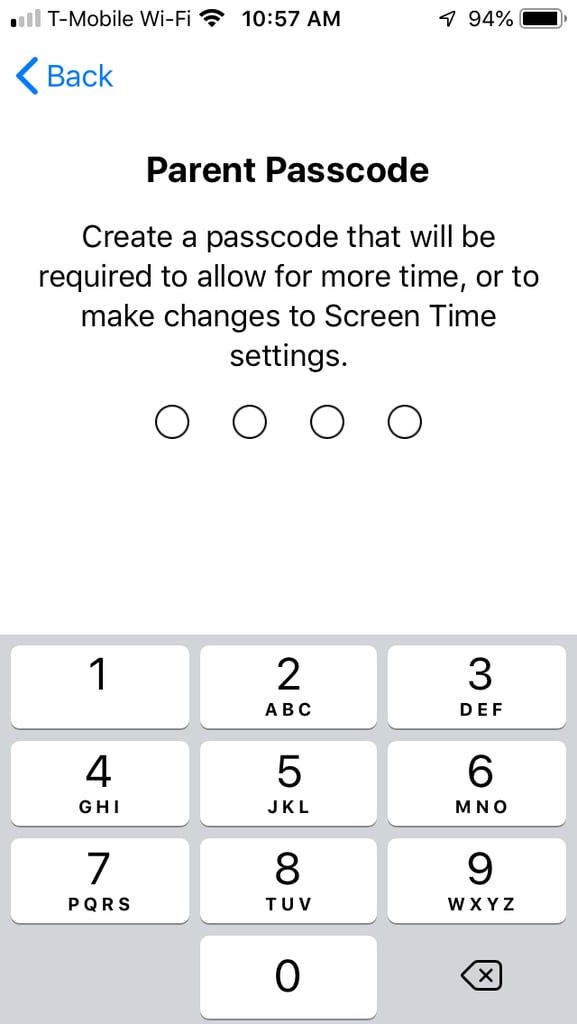
Set Parent Passcode