How Do I Use Screenshots in iOS 11?
Confused About Screenshots on iOS 11? Here's Every Single Tool, Explained


Image Source: POPSUGAR Photography / Diggy Lloyd
Product Credit: Philip Lim dress, Eddie Borgo chocker, Jennifer Zeuner rings, Baublebar bracelet.
Product Credit: Philip Lim dress, Eddie Borgo chocker, Jennifer Zeuner rings, Baublebar bracelet.
Every new iOS update has one thing guaranteed: an inevitable scramble to make space on your phone for it. And since iOS 11 is packing in more useful and fun things to do with screenshots, you might want to clear out even more space than usual. Along with introducing a new one-handed keyboard, a customizable control center, and other updates to your iPhone, iOS 11 now lets you do a whole bunch of new things to your screenshots including doodling on them, adding signatures to them, and cropping them before saving. Check out what you can do ahead, and don't hold yourself back from updating to the newest OS system today.

1 Easily mark up screenshots before sending them.
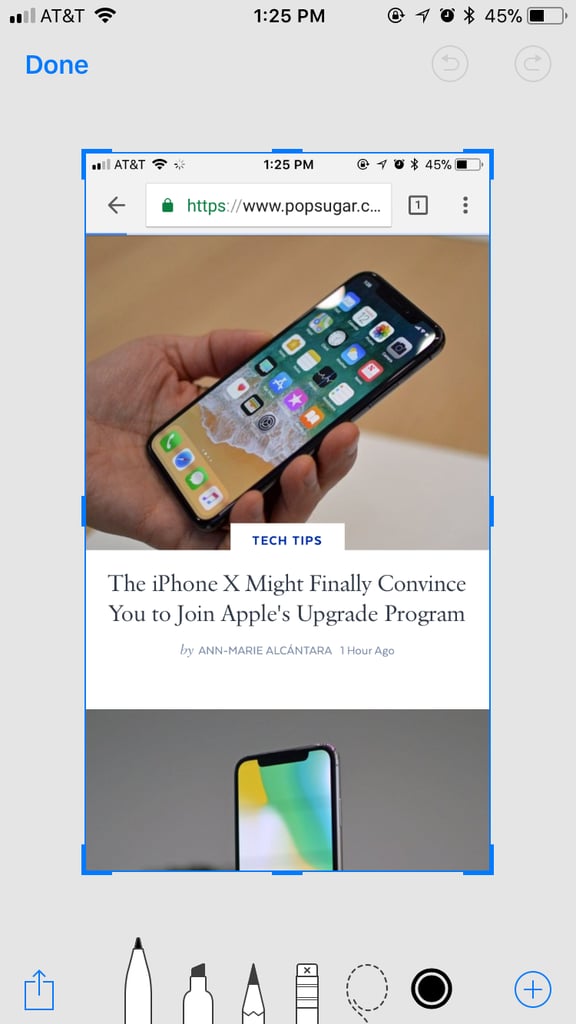
2 Add text to your screenshots.
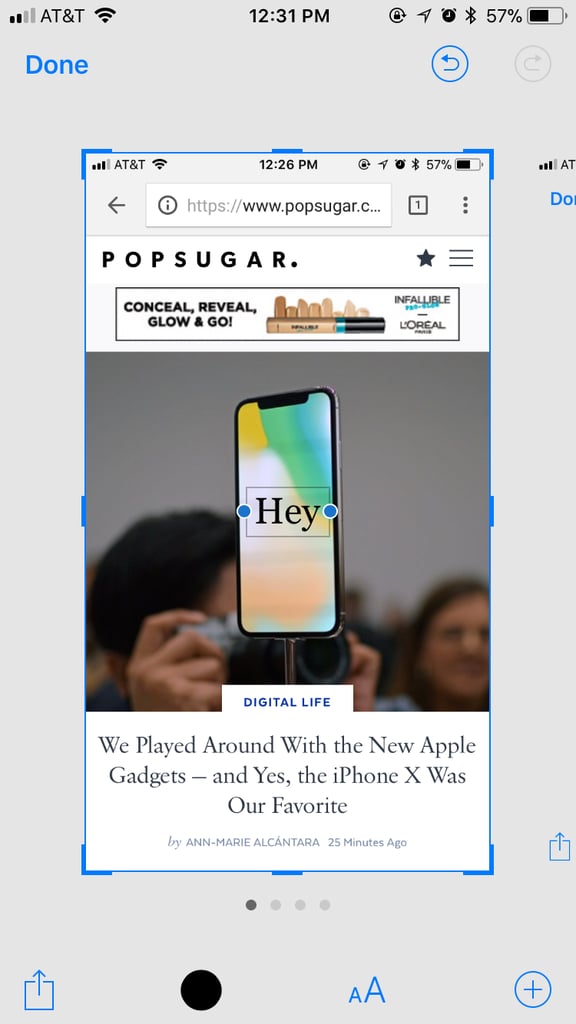
3 Add your signature.
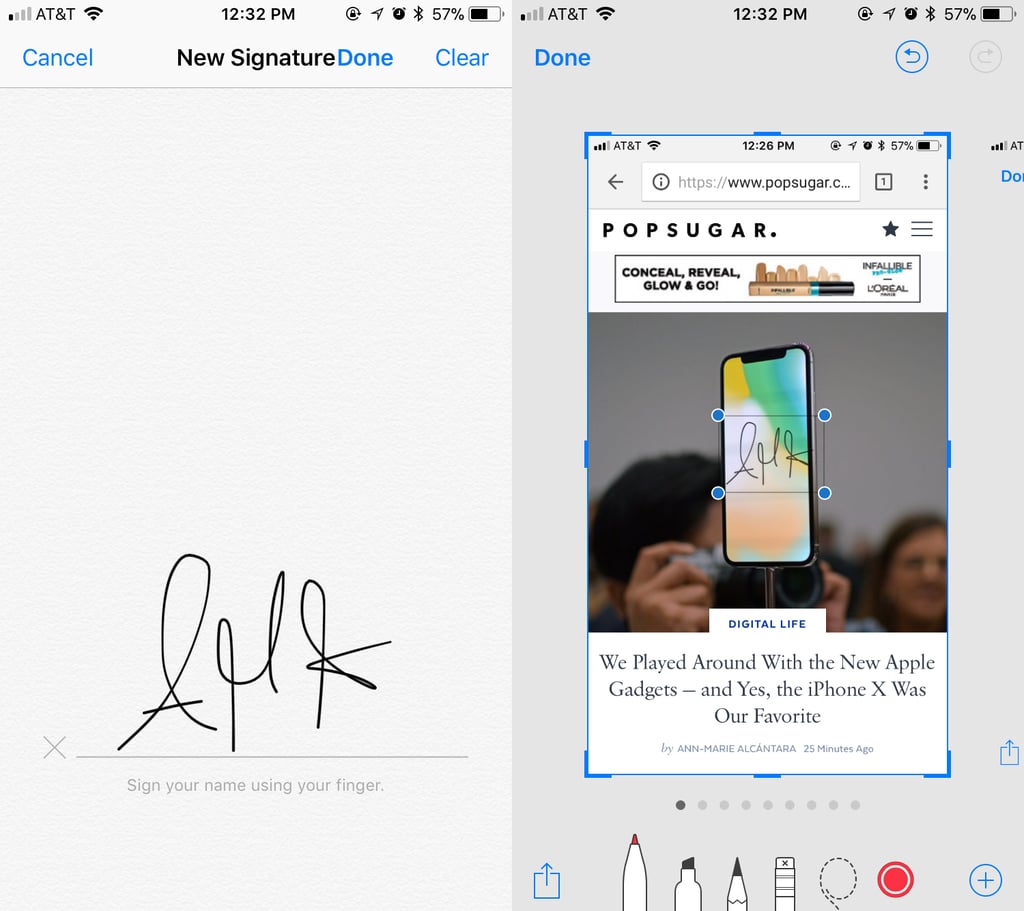
4 Magnify a certain part of your screenshot.
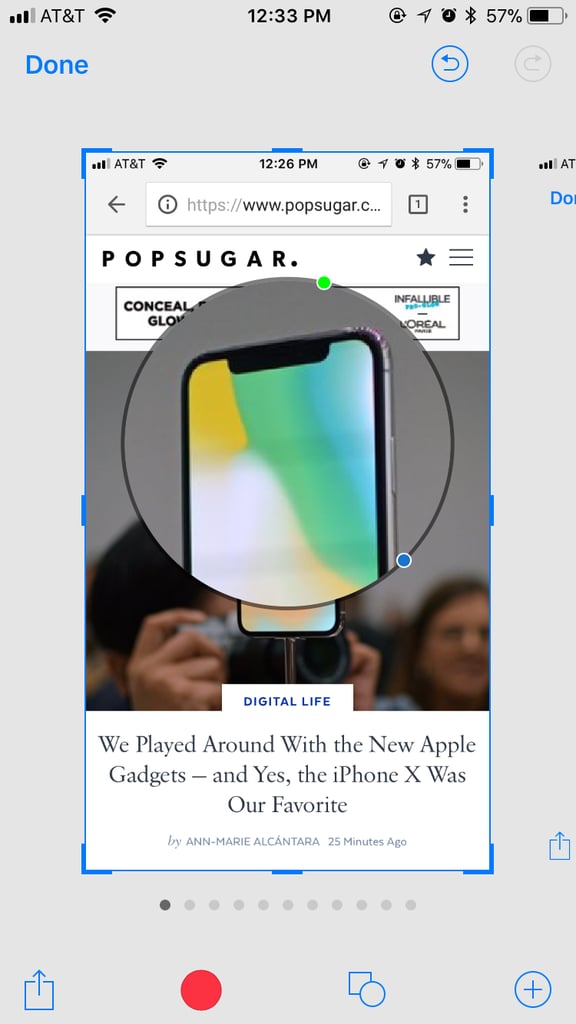
5 Add shapes.
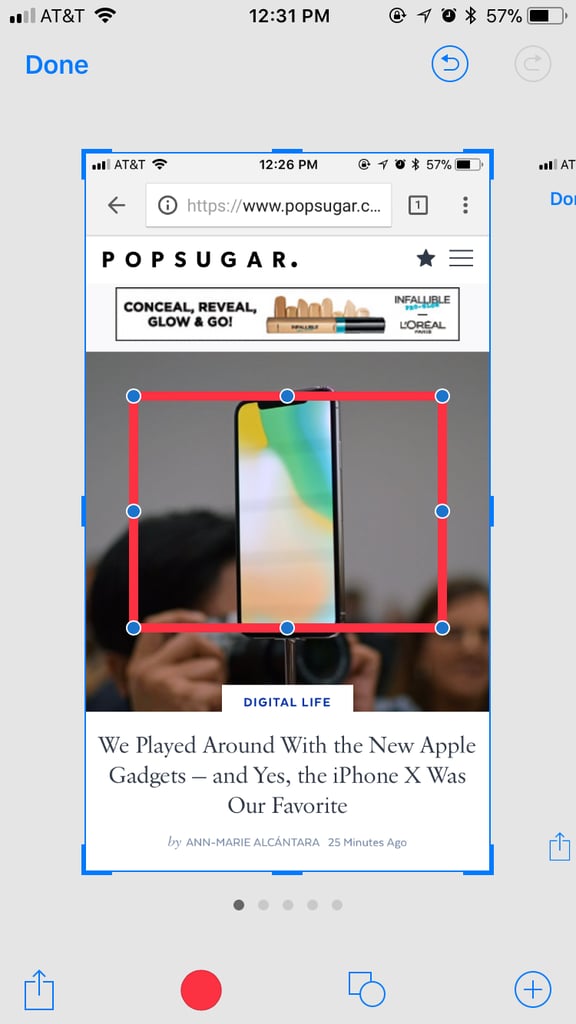
6 Crop screenshots however you'd like.
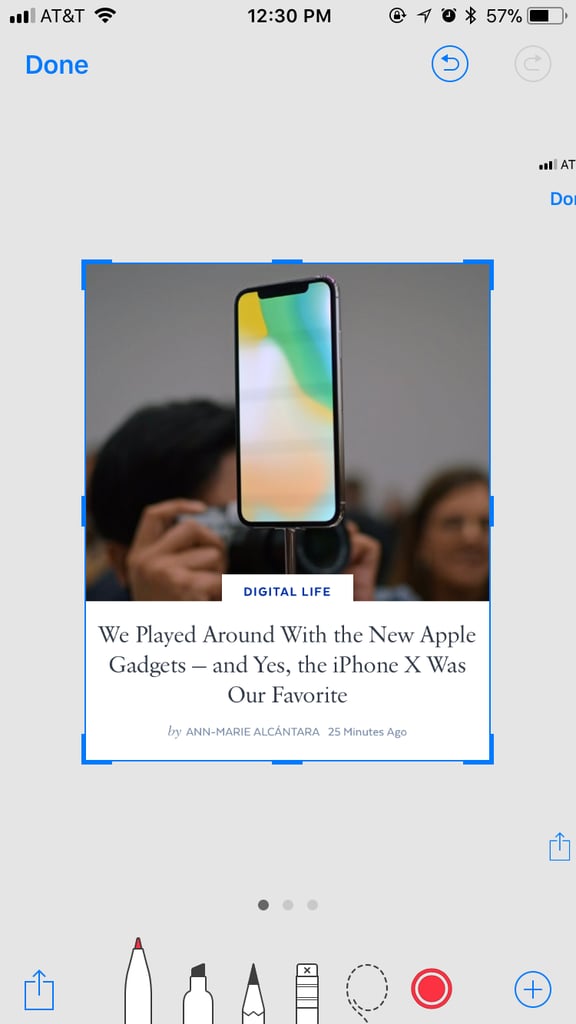
7 Zoom in.
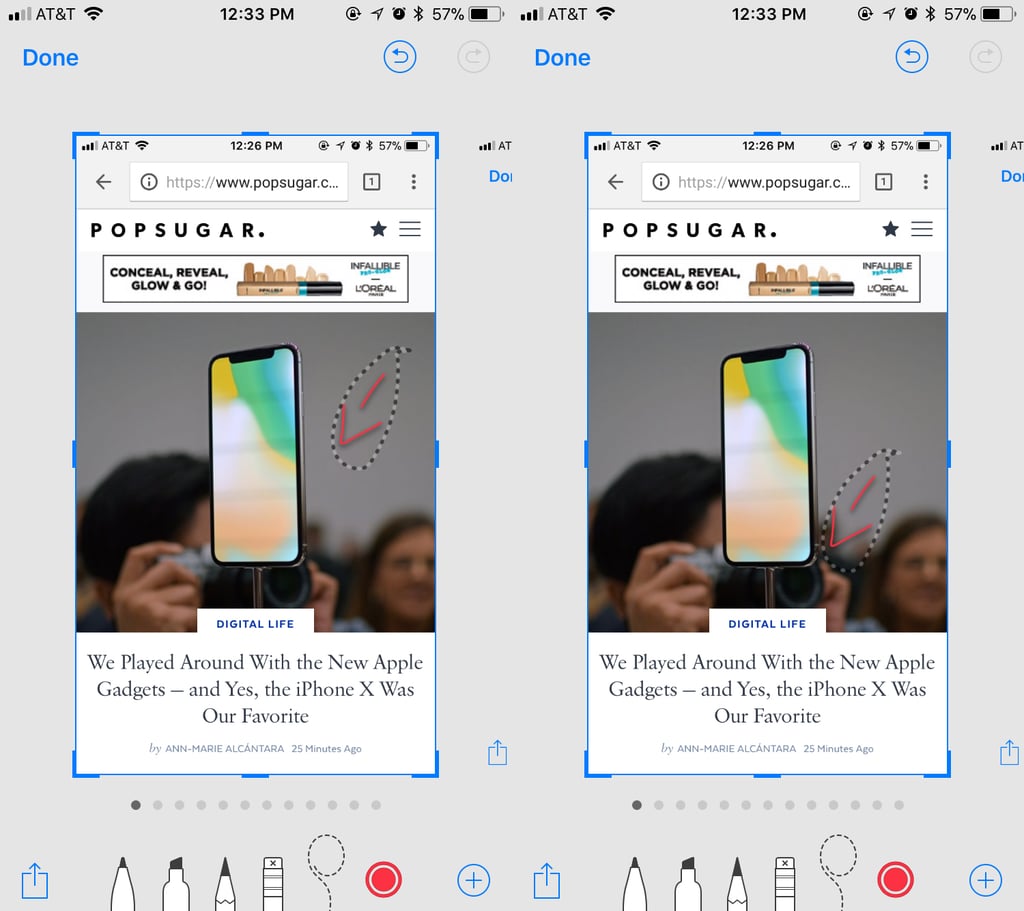
8 Use the lasso tool to move a markup.
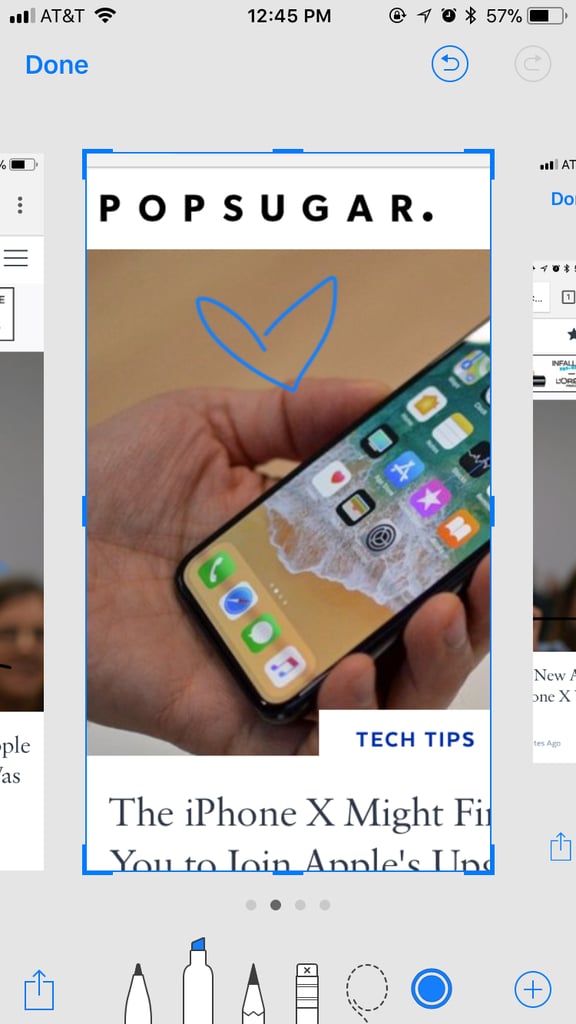
9 Edit multiple screenshots at the same time.
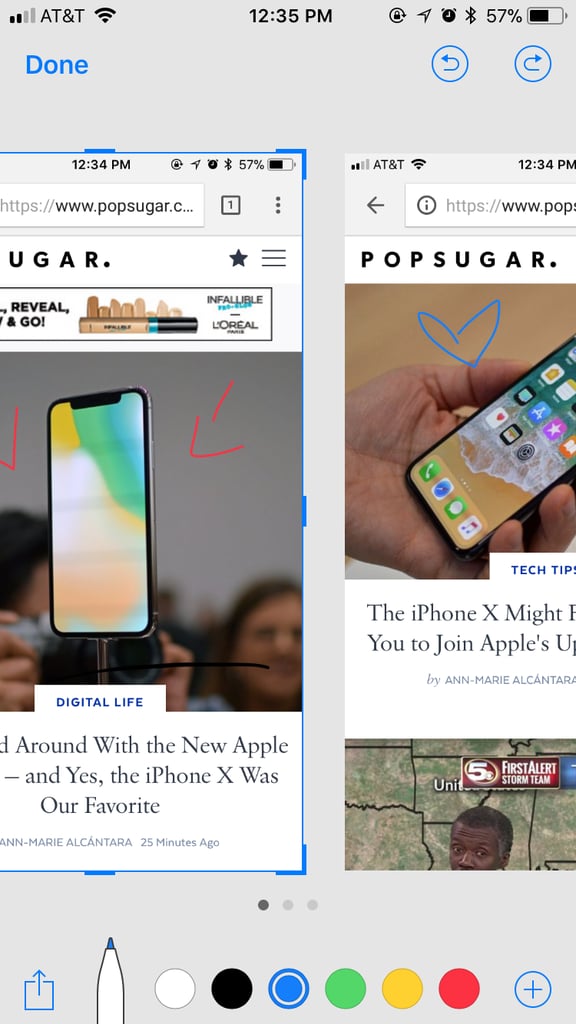
10 Undo and redo any actions.
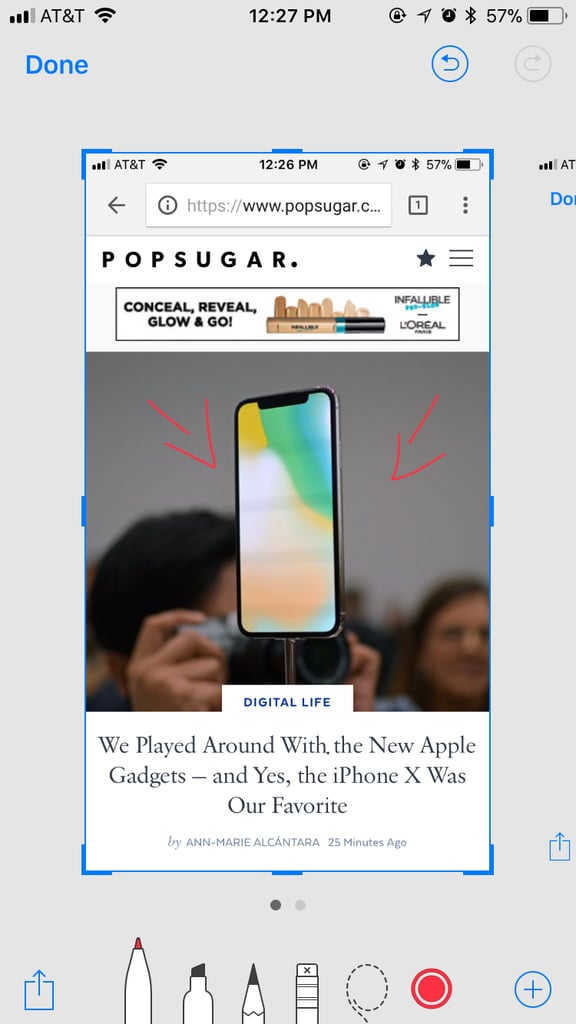
11 Quickly send a screenshot.
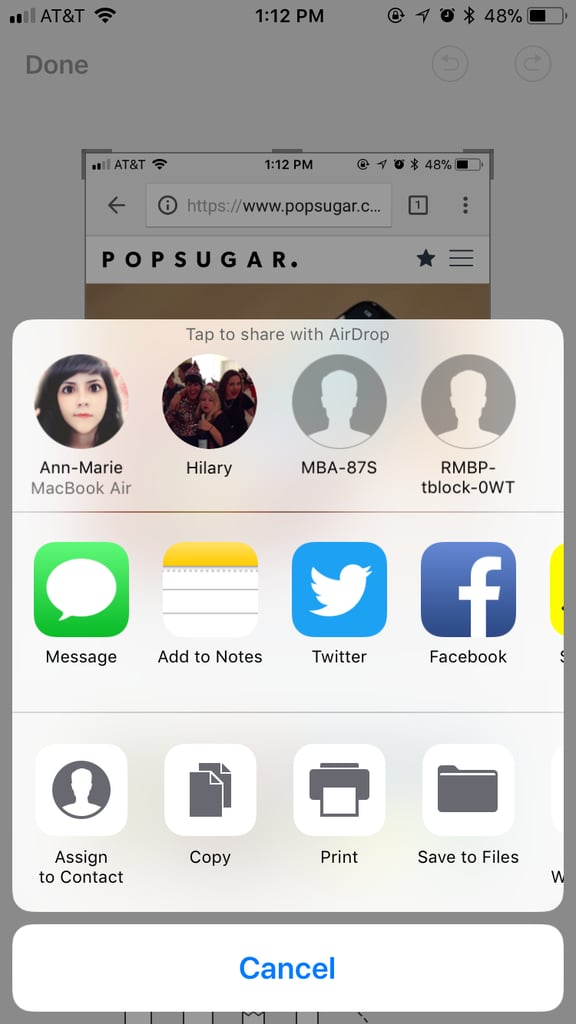
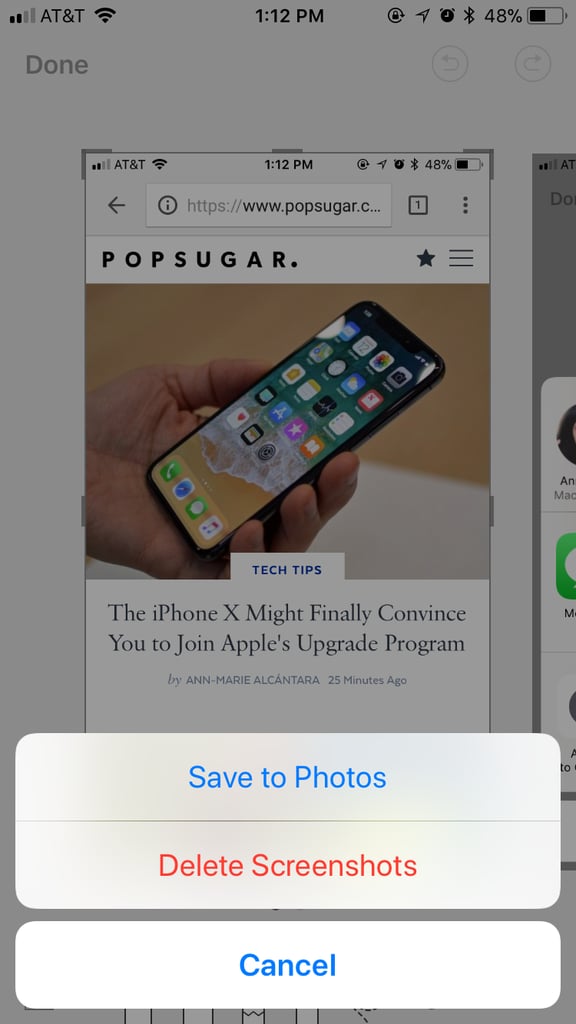
12 Delete screenshots before they make it onto your photo album.