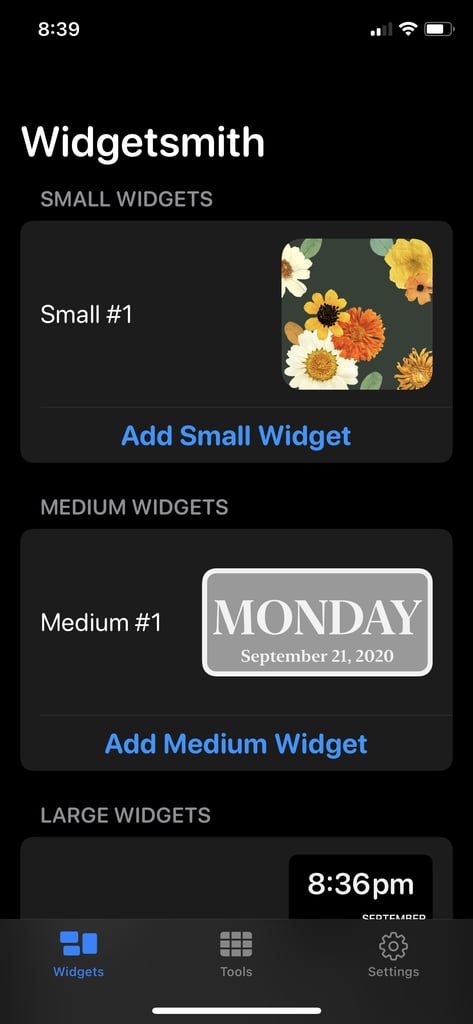
Popsugar Culture Tech Tips How to Customize Your iOS 14 Home Screen How to Customize Your iOS 14 Home Screen — Everything You Need to Know, Right Here September 22, 2020 by Tara Block View On One Page Photo 3 of 6 ADVERTISEMENT () Start Slideshow Share This Link Copy ← Use Arrow Keys → 3 How to Create Your Own Widgets With the Widgetsmith App Download the free Widgetsmith app from the App Store. Select small, medium, or large widget. Select free options like time, date, photo, text, calendar, reminders, activity, and astronomy. Options like tides and weather come with paid version. Select your font, letter color, and background color. Tap the automated name (i.e. Small #1) at the top to rename the widget, and then hit Save and exit app. Hold down your finger anywhere on your screen (or on an app and select "Edit Home Screen") until the apps wiggle. Tap the + icon in the top left corner. Search and select Widgetsmith, pick the size of the widget you created, and tap Add Widget to add it to your home screen. If you have multiple widgets of the same size, tap it and select the version you want (this is when renaming comes in handy). Move your widget to the location you want on the home screen and then select Done in the top right corner to set it in place. Previous Next Start Slideshow