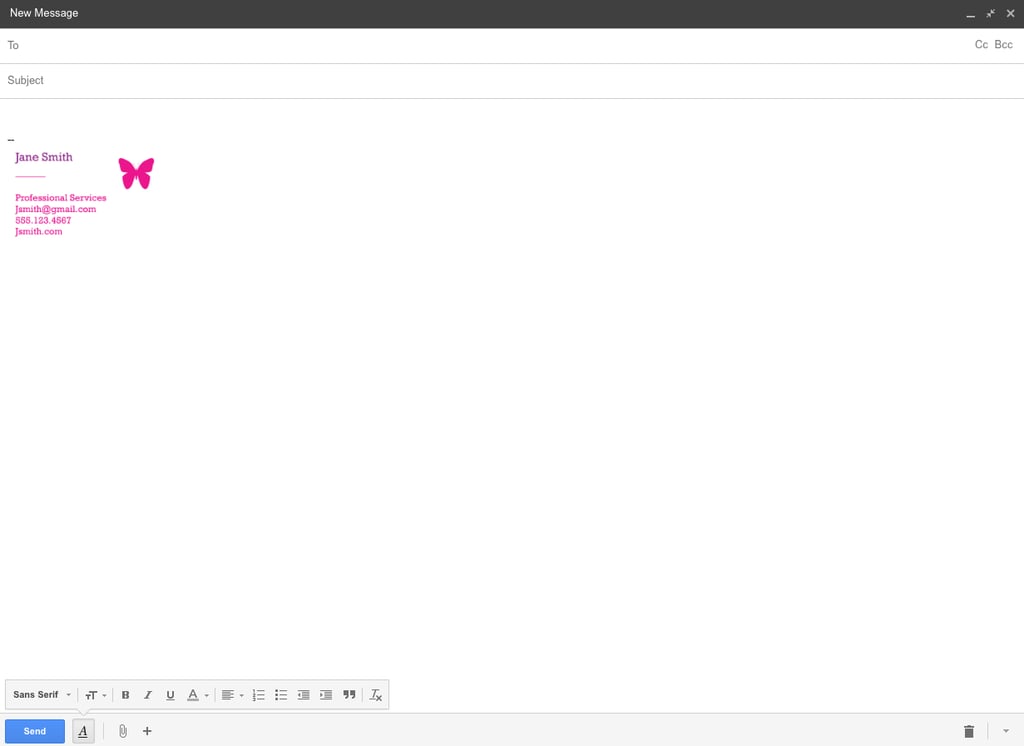
Gmail Signature Image
How to Set Yourself Apart When Sending Email


Oftentimes, it's the supersimple Gmail tips and tricks that make the most difference — like how to create a photo signature. In just a few steps, you can step up your email game by personalizing it in a way that no one else can copy. Ready? Here's the easy way to do it.
Source: Getty / Tim Robberts
Step 1: Create an Image That You Want to Use as Your Signature

Step 2: Upload the Photo to an Image-Hosting Site
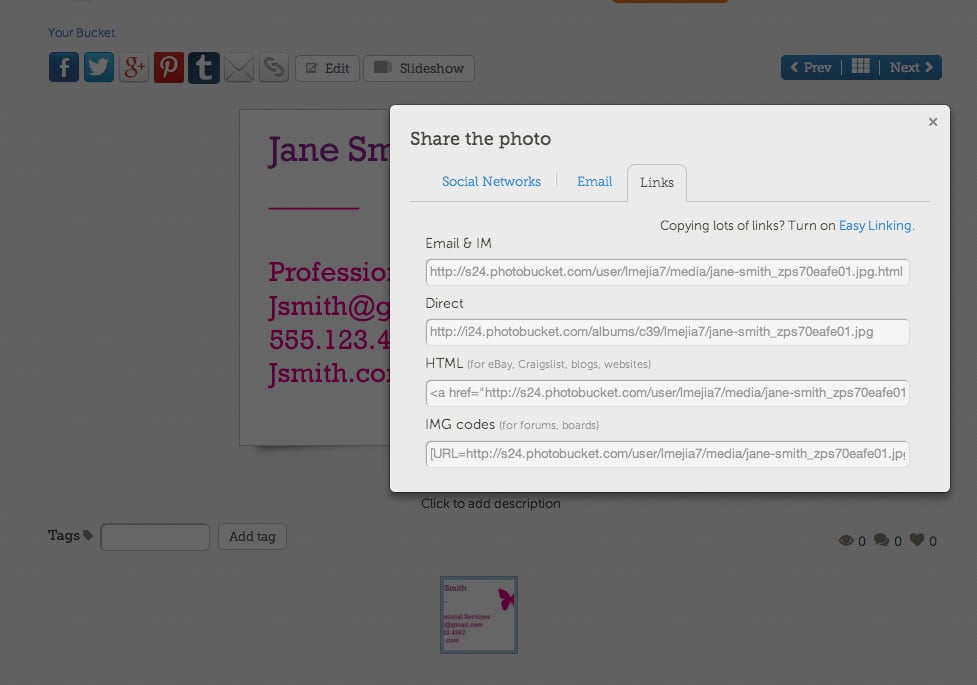
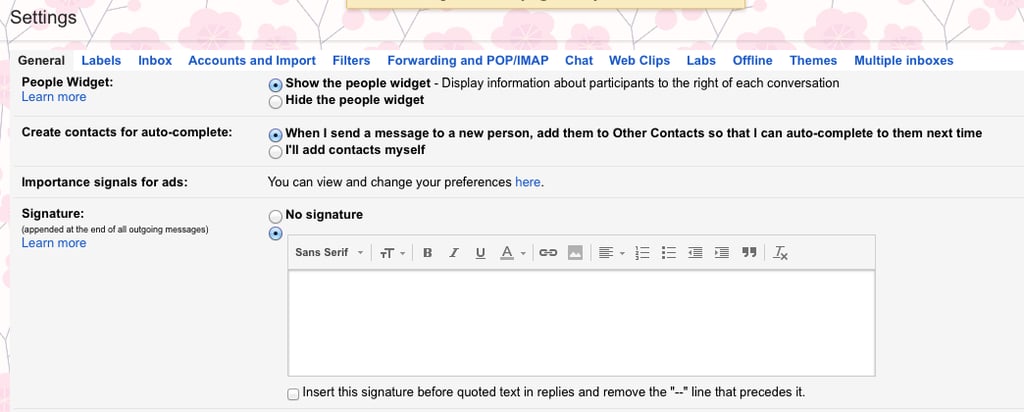
Step 3: Back in Gmail, Find the "Signature" Setting
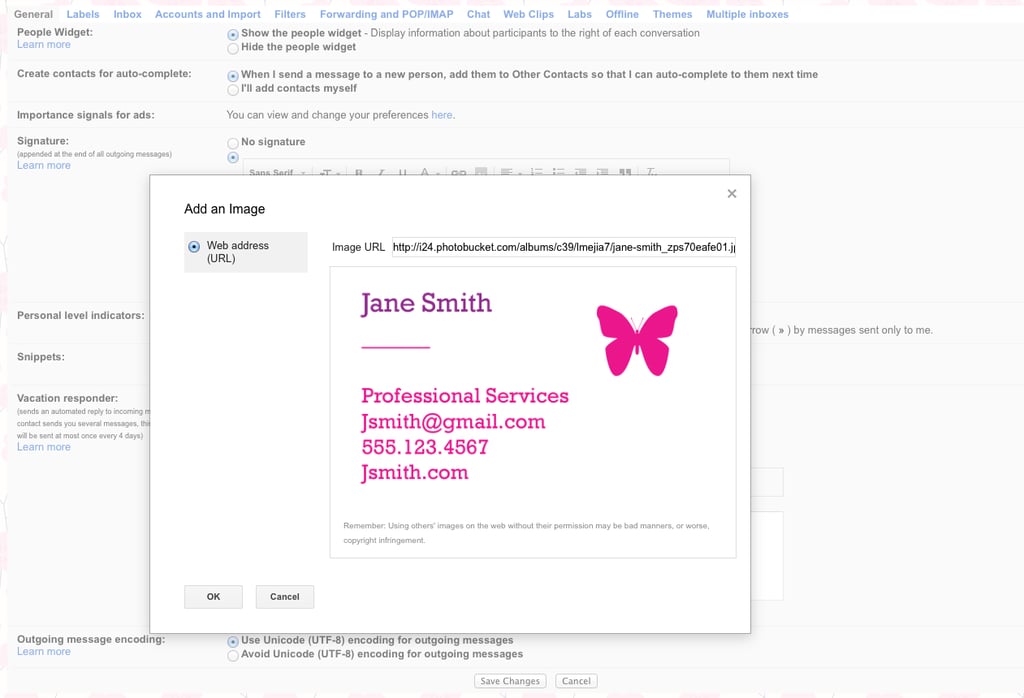
Step 4: Click on the Photo Icon and Insert Your Image URL
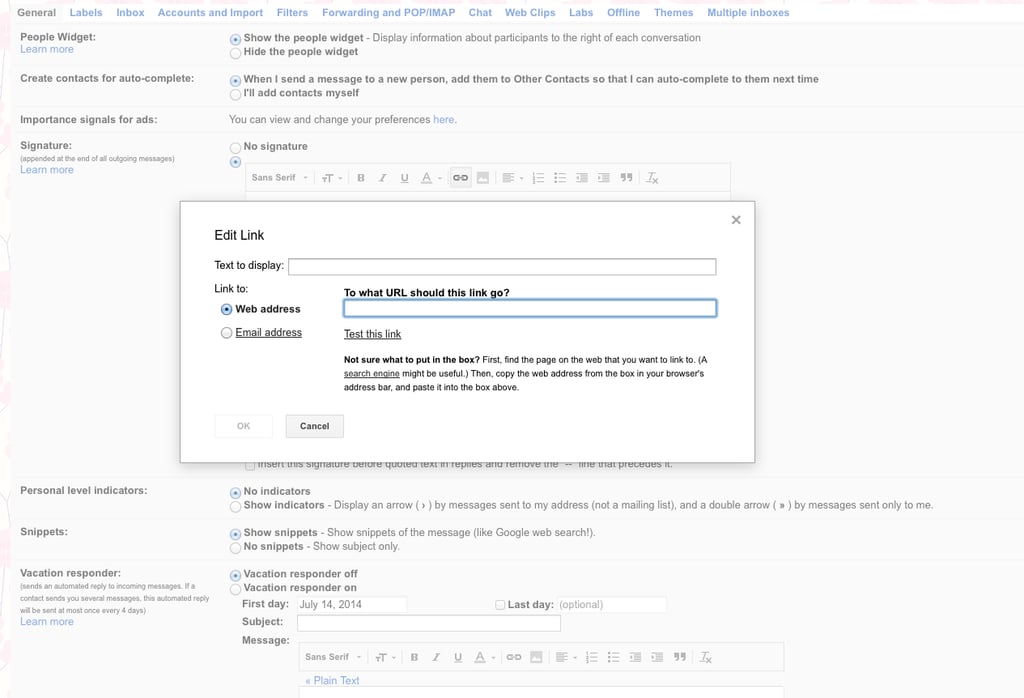
Step 5: Highlight the Photo and Then Click the Link Icon
Step 6: Hit "Save" and Then Compose a New Email